
This page takes you the whole way: creating your account, configuring your workspace, and running a real solicitation from import through to a submittable document. Signing up takes about two minutes, setup another two, and the first pursuit is the part worth slowing down for.
~2 min
To sign up
14
Day free trial
4
Setup steps
50 MB
Per document
The whole journey
-
1
Sign up
Plan and account, ~2 min
-
2
Set up
Profile, company, team
-
3
Import
Your first solicitation
-
4
Analyze
AI reads the documents
-
5
Decide
Gate review, Bid or No Bid
-
6
Draft
AI Writer, then export
Before You Start
A work email address — personal domains such as gmail.com are not accepted
A phone number, with country code if you are outside the US
No credit card — the signup form has no card fields
Optionally, a few company documents — you will want these in Part 3
Create Your Account
About two minutes, and no sales call.
-
1
Click Get Started Free
Go to proposalconnect.io. The Get Started Free button sits in the header and again in the hero, next to Book a Demo. Either one takes you straight to the signup page — there is no separate pricing step to get through first.
proposalconnect.io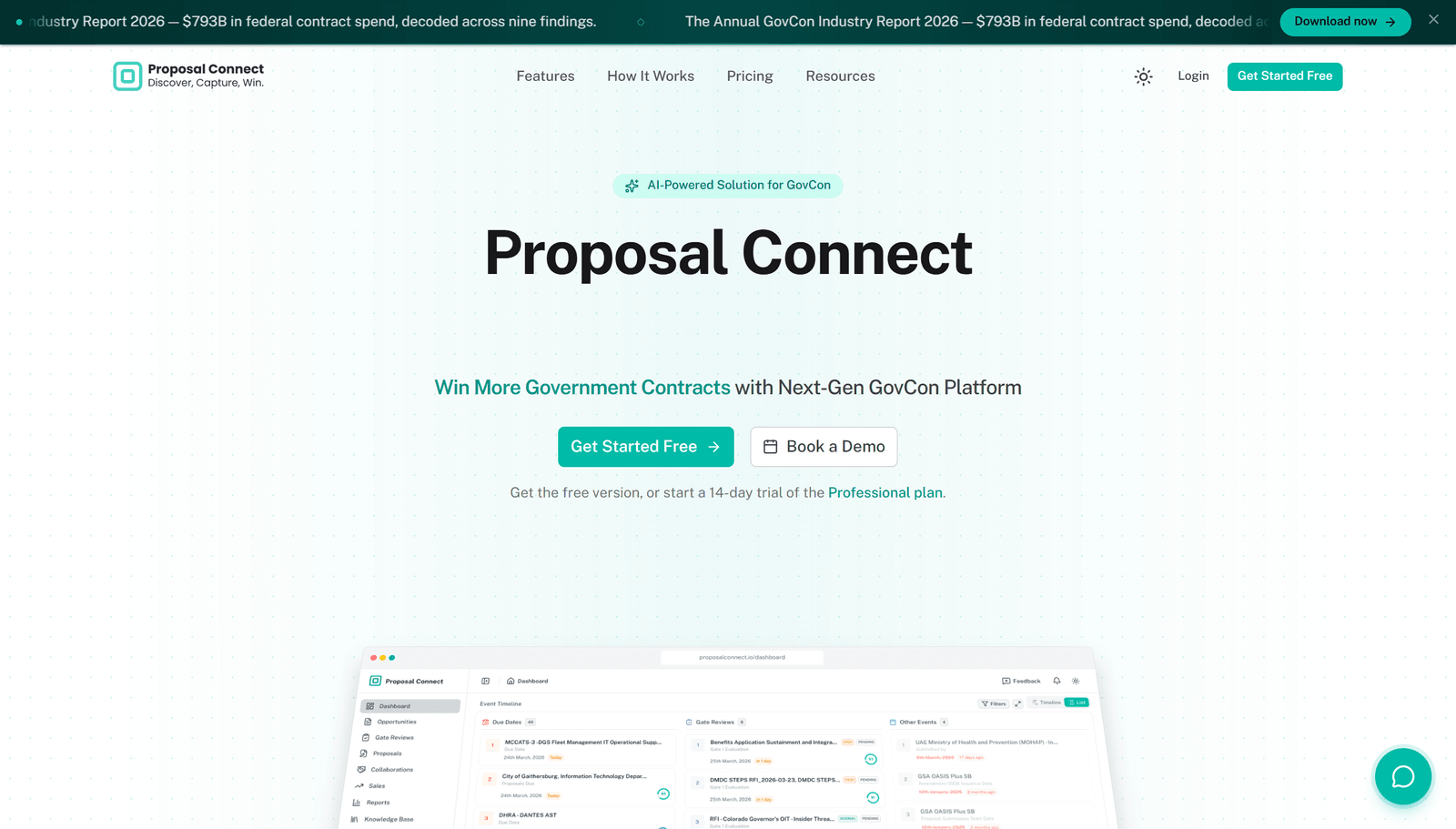
-
2
Pick Your Plan and Fill In the Form
The signup page does both jobs on one screen. Choose your plan sits at the top — Starter, Professional, or Enterprise, each starting with a 14-day free trial, with a monthly or yearly toggle (yearly saves 10%). One is preselected, so you only touch it if you want a different tier.
Email and password
Work email, phone number, and a password of at least six characters. Email and phone validate as you leave the field, so a typo surfaces before you submit.
Google or Microsoft
Continue with Google or Continue with Microsoft signs you in through your existing identity provider. No password to set, and no confirmation email to wait for.
proposalconnect.io/signup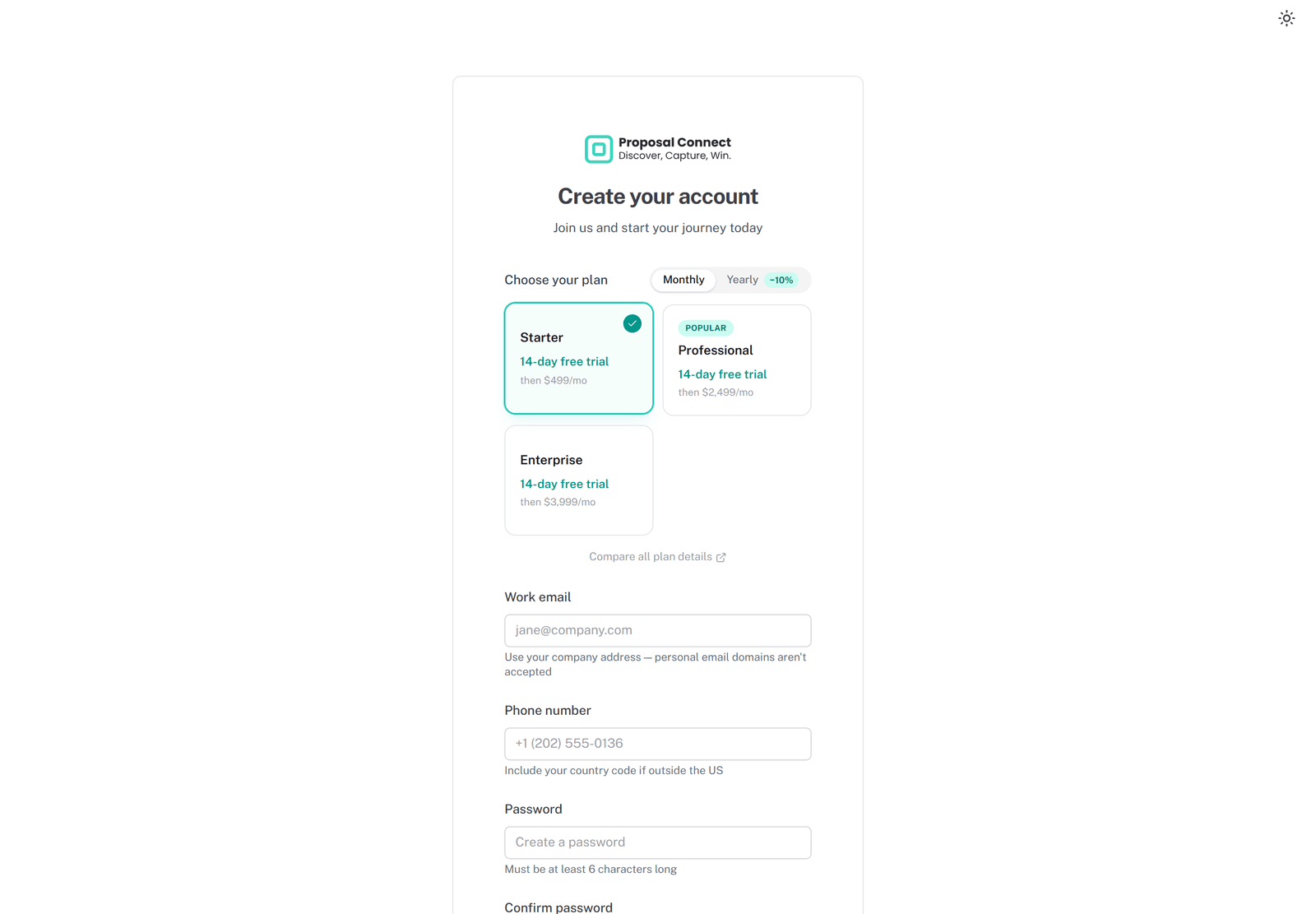
-
3
Confirm Your Email
If you signed up with email and password, we send a confirmation link. Click it and you are returned to Proposal Connect already signed in. If nothing arrives within a minute, check spam and quarantine folders. Single sign-on skips this step entirely.
Want to compare plans in detail first?
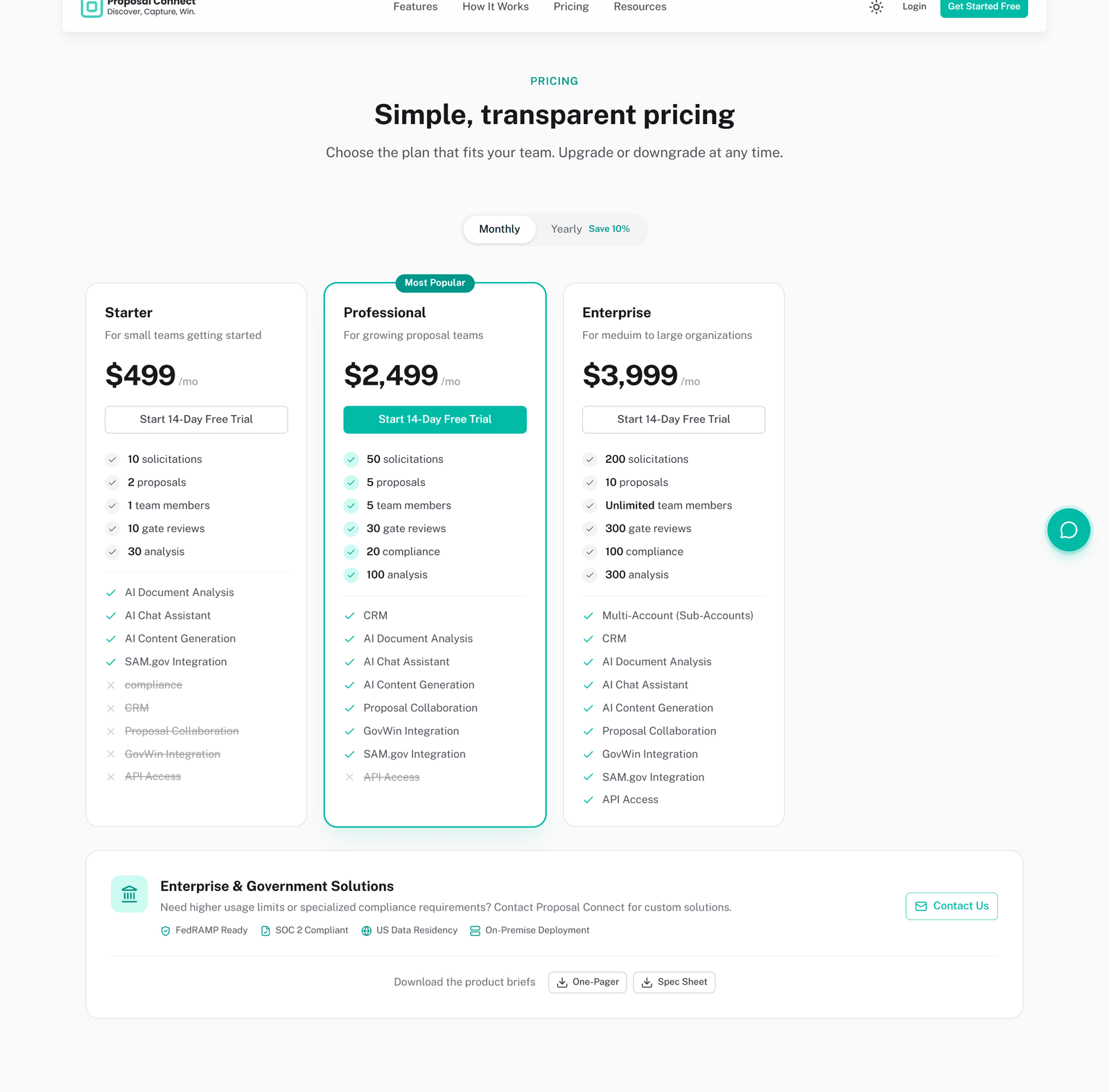
The plan chooser at signup is deliberately compact. For the full comparison — usage limits for solicitations, proposals, gate reviews and analyses, plus which modules each tier includes — click Pricing in the top menu (or go to the pricing section). Starting a trial from a plan card there carries that plan into signup for you.
Starter
Small teams getting started. AI analysis, chat assistant, content generation, SAM.gov.
Professional
Growing proposal teams. Adds CRM, collaboration, GovWin, compliance.
Enterprise
Medium to large organizations. Adds sub-accounts, unlimited members, API access.
Complete Your Setup
New account owners land on a four-step wizard. Two steps are required, two are optional, and nothing here is permanent — every field can be edited later. Teammates who join through an invitation link skip this entirely.
Complete Profile
RequiredYour full name and a profile picture. This is what teammates see on section assignments, review comments, and the collaborative editor cursor. Editable later from Profile in the user menu.
Account Setup
RequiredYour company name and logo. The account is the container for everything else — opportunities, proposals, the knowledge base, and your team. The logo appears on generated documents.
Set API Key
OptionalA Gemini API key, so AI features run on your own quota. The key is validated against the provider before it is saved and stored encrypted.
Invite Team
OptionalTeammate emails and their roles. Each invitee gets a link that drops them into your account — they do not repeat this setup. Your plan caps how many members an account can have.
No Gemini API key yet?
Create one free in Google AI Studio:
- Open Get API key in the left sidebar
- Click Create API key and pick or create a project
- Copy the key and paste it into the field in setup
The How to get a Gemini API key? link under the field opens the same walkthrough with screenshots. Skipping does not block you from finishing setup.
| Role | What they can do |
|---|---|
| Member | Work on opportunities, analyses, proposals, and the knowledge base, within the module access you grant them. |
| Administrator | Everything a member can do, plus managing the account: members, access control, integrations, and configuration. |
Team members can be invited any time from Settings → Members, and per-module access is managed under Settings → Access Control.
Your First Proposal
Proposal Connect follows the capture lifecycle you already run: find the opportunity, understand it, decide whether to bid, write the response, submit. Each stage feeds the next.
Do this first
Before your first real bid, upload a handful of documents to the Knowledge Base — two or three past performance write-ups, your capability statement, and a few key resumes. The AI writer pulls from these when it drafts. Ten minutes here changes the quality of every draft that follows.
-
1
Create the Opportunity
Open Opportunities and create a new one. There are three ways to get the solicitation in:
From file
Drag in the solicitation, SOW, and attachments. PDF, DOC, DOCX, TXT, and images up to 50 MB each.
By ID
Paste a notice ID from SAM.gov, GovWin IQ, or Government Navigator and pull the record with its documents.
By search
Search the connected source by agency, NAICS, set-aside, or deadline and import the result you want.
Imported opportunities arrive with their metadata already populated. Anything still missing is flagged so you can fill it in before the analysis runs.
-
2
Run the AI Analysis
Open the opportunity and click Start Analysis. Pick an analyzer — the template that defines which sections get produced, such as requirements summary, evaluation criteria, key dates, risks, and win themes. Results stream in live, so the first sections are readable while the rest are still being written.
Afterwards you can highlight keywords, ask follow-up questions in Ask More, regenerate an individual section, generate the compliance matrix, and print or share the analysis.
-
3
Decide Whether to Bid
Generate the Go/No-Go report, then run a formal gate review: score the opportunity against your decision template, request reviewers, and let them approve or deny. Record the outcome as Bid or No Bid with the rationale attached, so six months later you can see not just what you decided but why.
-
4
Build the Proposal
Create a proposal from the opportunity and follow the guided AI Writer. Each step gates the next, so you never draft against a structure you have not approved.
The AI Writer workflow
-
1
Identify Template
Structure from the RFP
-
2
Identify Documents
Map past performance
-
3
Draft Content
Section by section
-
4
Validate Compliance
Check against requirements
-
5
Export
Word, PDF, SharePoint
-
1
-
5
Export and Submit
Export to Word (.docx) or PDF, save the structure as a reusable template for the next pursuit, or push the document to a connected SharePoint site so the rest of the organization can review it where they already work.
What to do next
- 1 See everything the platform does — the Core Features overview lists every module.
- 2 Connect your sources — link SAM.gov or SharePoint from Settings.
- 3 Go deeper on the AI — see AI Capabilities for the writer, knowledge base, and agents.